
Subscribe and get your license
Pick a plan on this page. After completing your purchase, you receive your license key by email.
Compatible with PrestaShop 8.x – 9.1.4
Get ahead: AI furniture visualization for e-commerce.
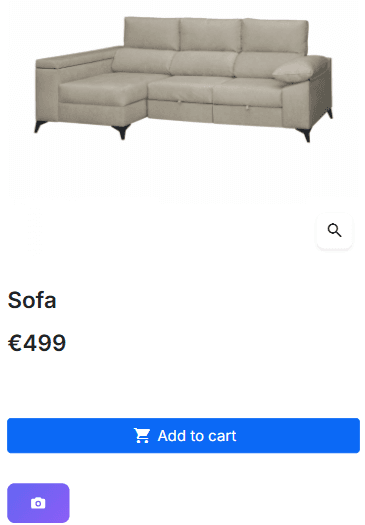
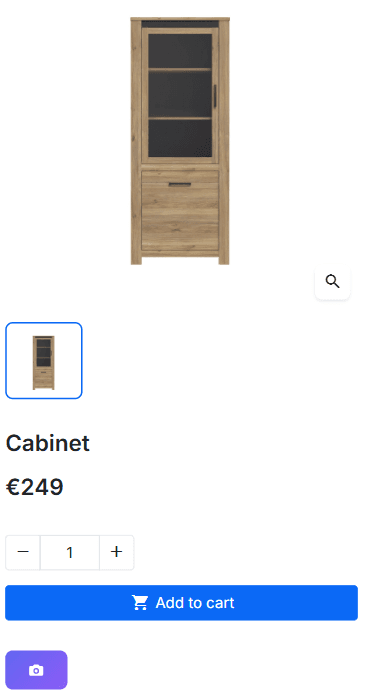
Product page
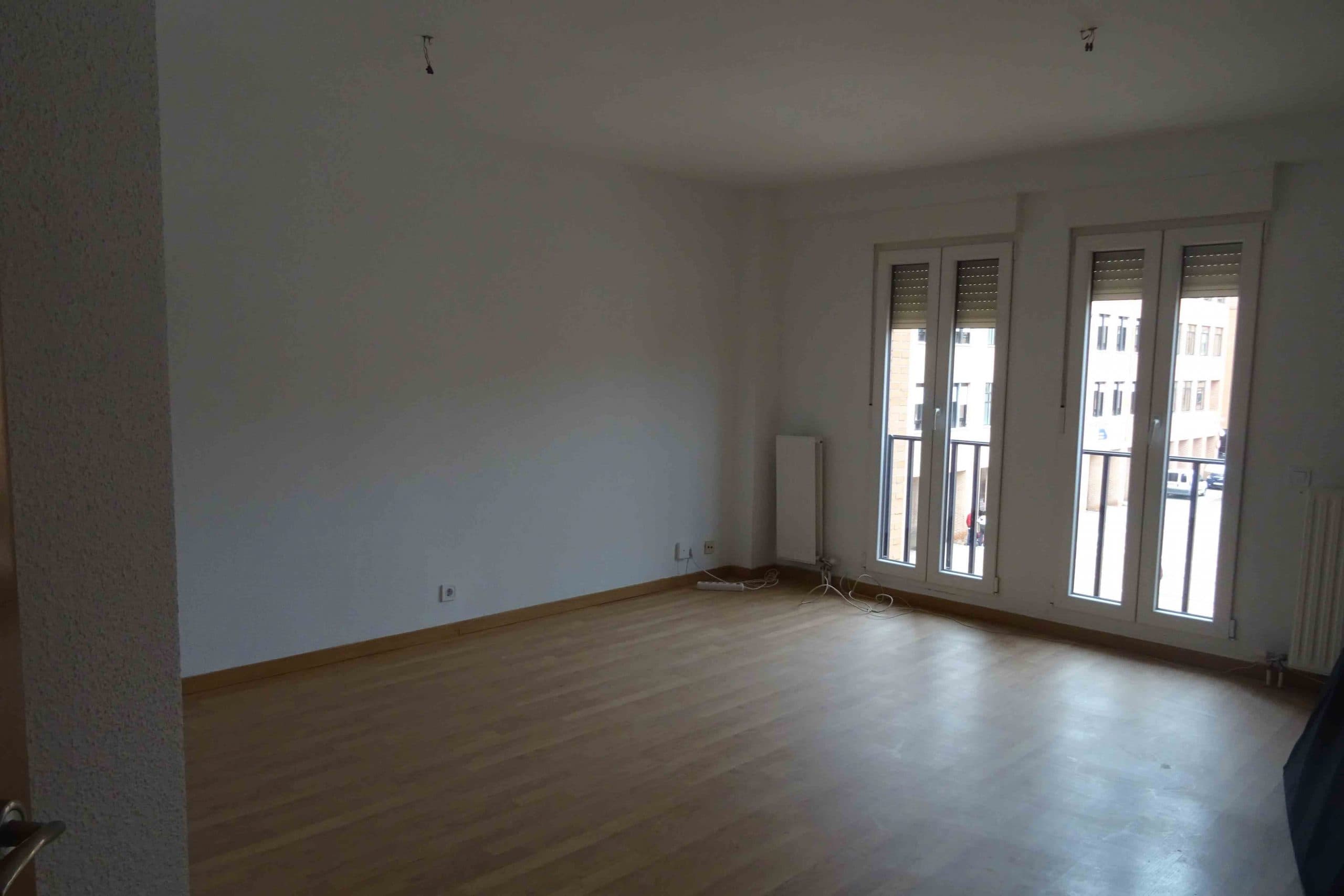
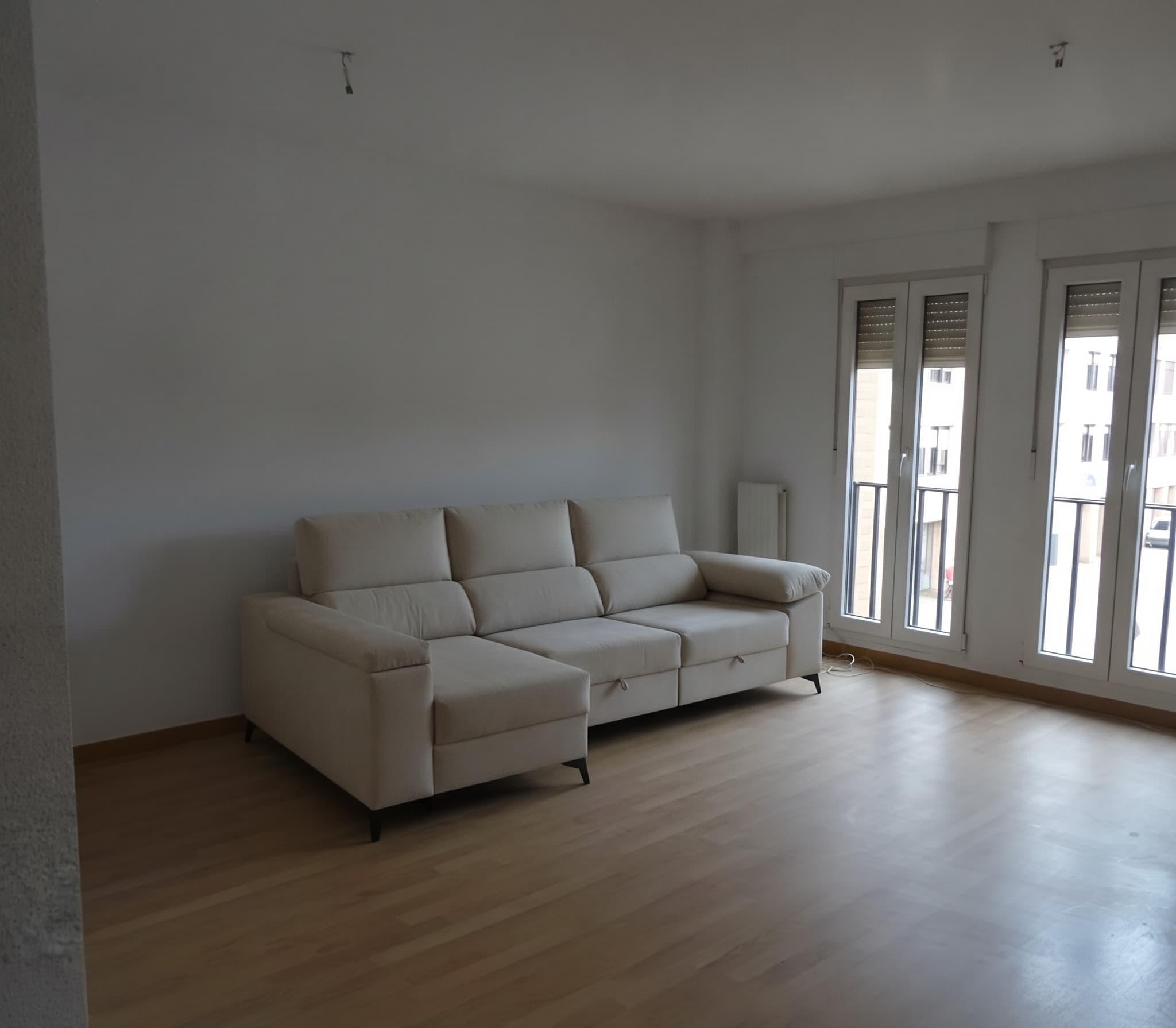
Moblia lets your customers see how your furniture will look in their space with a single photo.
 Before
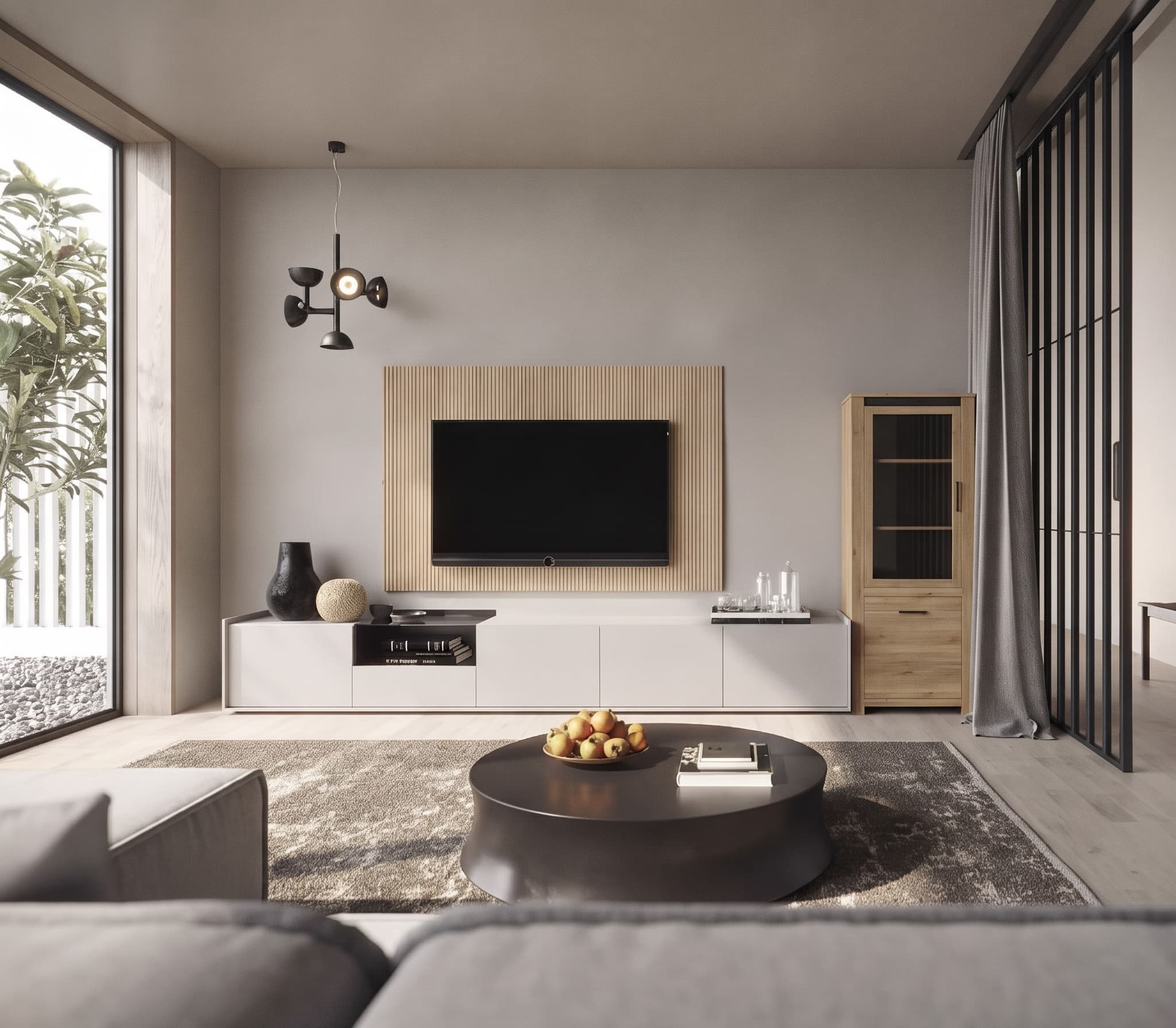 With Moblia
Pick a plan on this page. After completing your purchase, you receive your license key by email.
Download the zip below and upload it from your back office: Modules → Module Manager → Upload a module. Then go to Modules → Module Manager, find Moblia, and select Configure. Enter your license key and purchase email.
The visualizer button appears automatically on your product pages.
Don't let doubt turn into an abandoned cart.
Cancel anytime — one email is all it takes.
€19/mo
50 generations / month
Choose Starter€39/mo
250 generations / month
Choose Pro€59/mo
1500 generations / month
Choose BusinessGet the module
Download the module zip and upload it from your back office: Modules → Upload a module.
moblia.zip · 37 KB
Once payment completes, you get a license key by email. In your PrestaShop back office, go to Modules → Module Manager, find Moblia, and select Configure. Enter that key along with the purchase email, and the module activates instantly.
Use the "Try back office" button with the email demo@demo.com and password demodemo.
Email info@moblia.es with the purchase email. We cancel it manually and it stops renewing at the next billing cycle. No lock-in, no penalty.
Once you go over the limit, the feature is disabled. Email info@moblia.es and we'll help you bump the plan.
Moblia runs on PrestaShop 8.x and 9.x, up to version 9.1.4.
Photos are used only to generate the requested visualization.